Chatbots
Chatbots (AI Agents) are intelligent assistants that can help learners with personalised guidance and instant answers throughout their experience in Reflectis.
Overview
Agents leverage the Research Archive (Vector Stores) to provide context-aware responses based on your organization's knowledge base.
Creating a Chatbot
Chatbots are created from templates and then tailored with parameters (name, audience, tone, topics, grounding, etc.).
Templates and fields may vary; what follows shows the typical flows.
1) Pick a template
From Create New Chatbot choose a starting template.
- Basic templates → quick setup (usually just Label and Description).
- Structured templates → full configuration (identity, audience, tone, constraints, topics, grounding…).
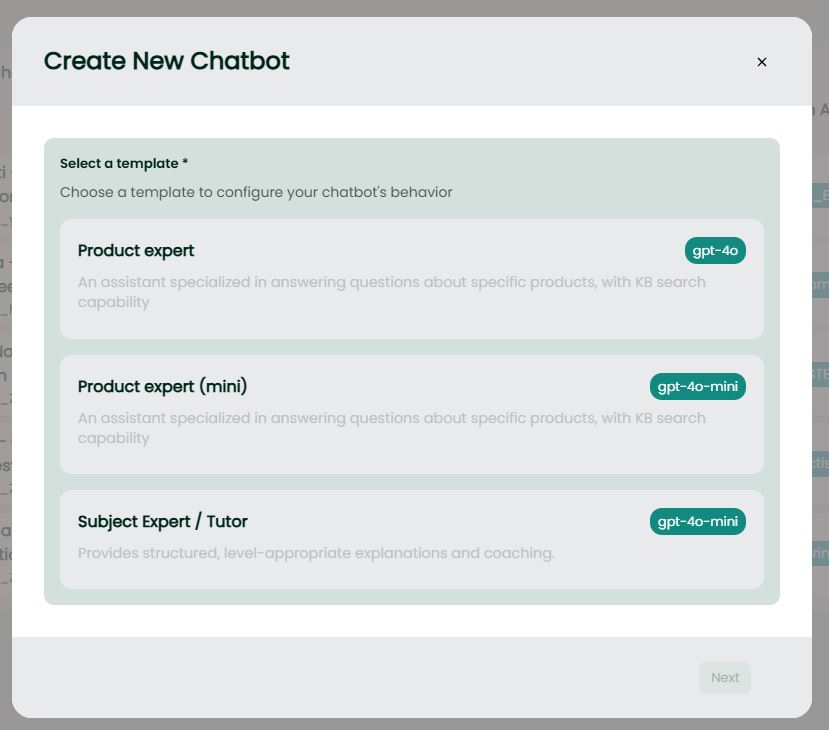
Templates are examples. Your workspace may expose different names/models (e.g., “Product expert”, “Tutor”, “Support bot”).
2) Basic template flow (quick)
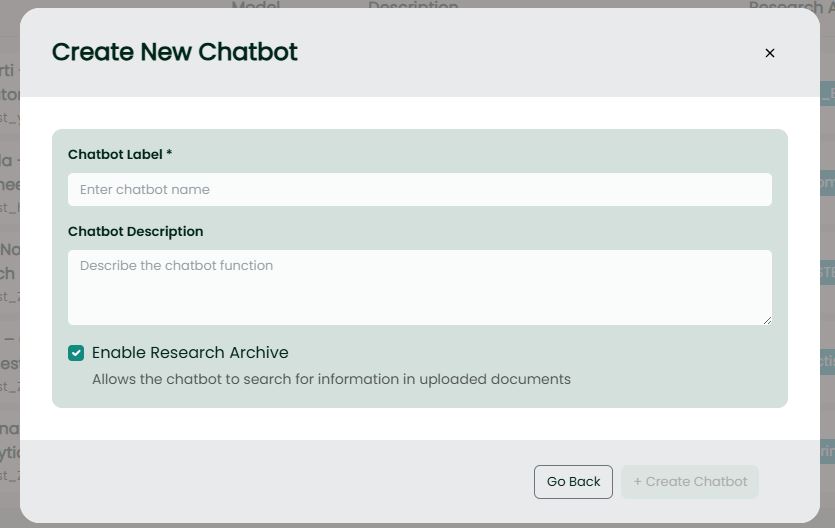
Fill in:
- Chatbot Label – the visible name.
- Chatbot Description – short purpose statement.
- Enable Research Archive – allows the agent to search uploaded documents.
Click Create. You can edit later.
3) Structured template flow (full)
The exact fields differ by template; these are the most common.
A. Identity & Knowledge
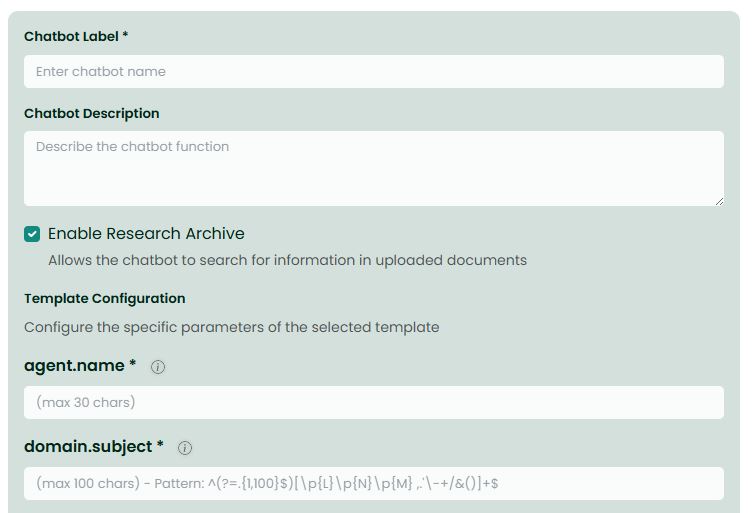
- Chatbot Label – public name.
- Chatbot Description – purpose.
- Enable Research Archive – let the agent search uploaded documents.
- agent.name – internal agent identity.
- domain.subject – primary domain focus (e.g., museum education, cyber security, product Q&A).
B. Audience & Style
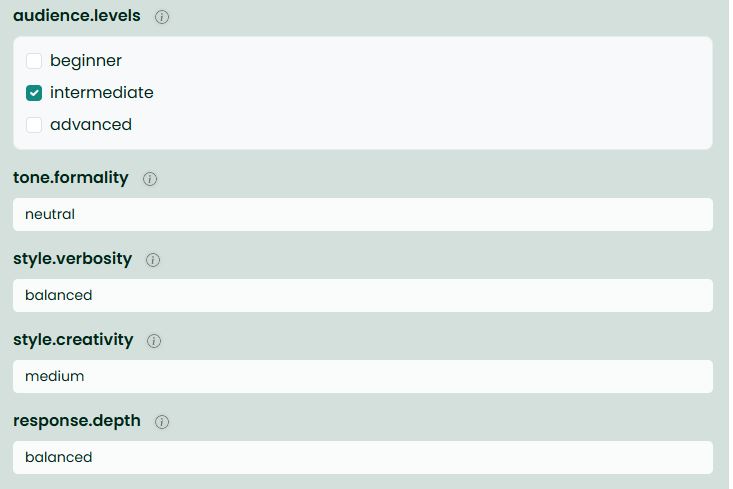
- audience.levels – beginner, intermediate, advanced.
- tone.formality – casual / neutral / formal.
- style.verbosity – succinct / balanced / elaborate.
- style.creativity – conservative / medium / high.
- response.depth – shallow / balanced / deep.
C. Constraints & Topics
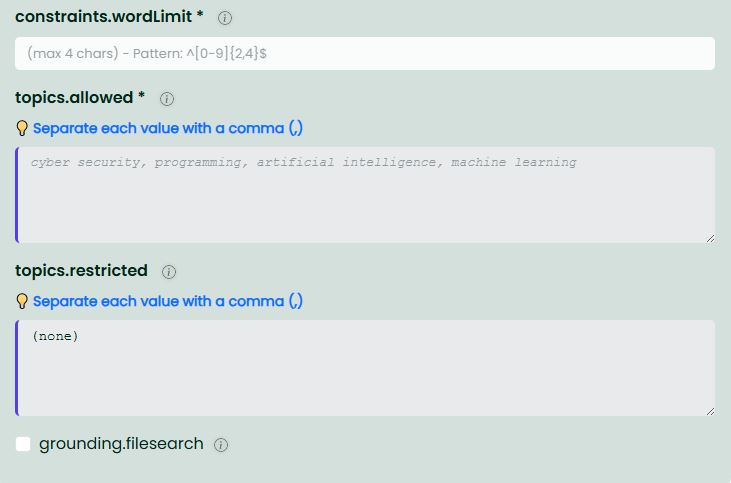
- constraints.wordLimit – max response length (characters).
- topics.allowed – comma-separated whitelist of topics the bot should focus on.
- topics.restricted – topics to avoid/refuse.
D. Voice Selection
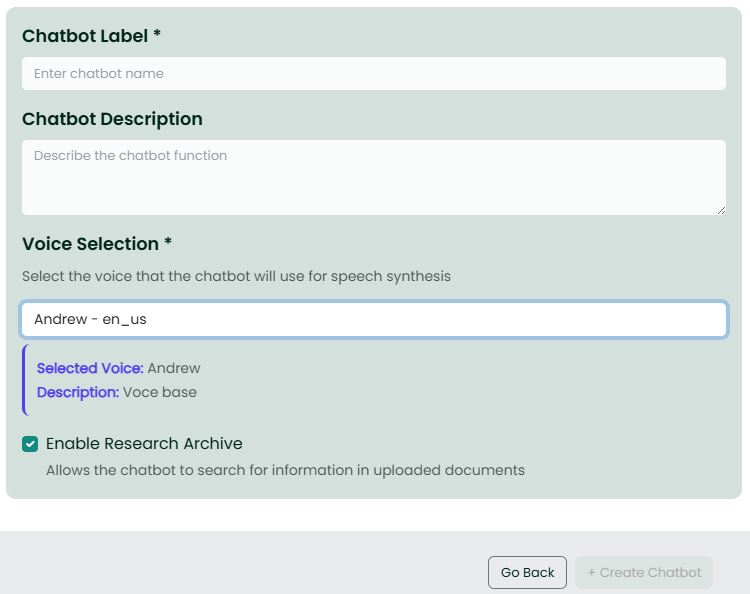
- Voice Selection – configure the text-to-speech voice for your chatbot:
- Select from available voices in the dropdown menu during chatbot creation
- The system automatically preselects a default voice when available
- Once selected, an information box displays the voice name and description
- The selected voice enables audio-based interactions with the chatbot in-world
E. Grounding & File Search
- grounding.filesearch – controls how the agent retrieves information:
- ON (retrieval-first): The agent queries the attached vector store first and bases answers on retrieved documents plus the conversation context. Recommended for factual, document-grounded responses (policies, manuals, FAQs).
- OFF (reasoning-first): The agent relies only on its internal knowledge and the current conversation context, without searching the vector store. Better for general assistance or creative tasks.
4) Review & Create
- Use Go Back to change the template if needed.
- Click Create Chatbot to save. The agent appears in your list and can be edited anytime.
Notes & Best Practices
- Field variability: each template exposes different parameters—fill what you see.
- Grounding strategy:
- Enable grounding.filesearch (ON) when you need accurate, document-based answers (product specs, company policies, training materials).
- Disable it (OFF) for general conversations or when your vector store doesn't contain relevant information.
- Audience first: set audience.levels and tone to calibrate explanations.
- Safety: use topics.restricted to fence off unwanted areas.
- Iterate: test with real questions, then refine topics, tone, and constraints.